
Appearance
Advanced Tab (DB Connection)
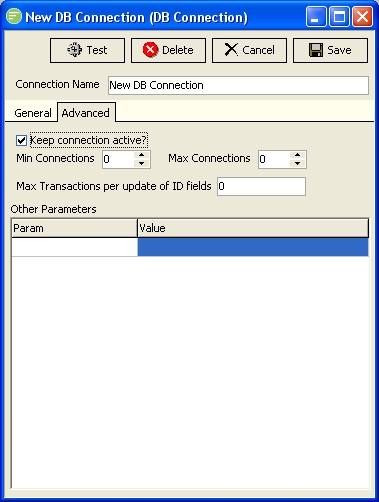
Fields
| Field Name | Description |
|---|---|
| Keep Connection Active | Keeps the connection cached ready for the next Action to need it |
| Min Connections | The minimum number of connections to keep cached |
| Max Connections | The maximum number of connections allowed in cache |
| Max Transactions per update of ID fields | Maximum transactions to include in a single update statement |
| Other Parameters | Other connection parameters |
Details
Keep Connection Active
Enable this option to keep the connection cached ready for the next Action that needs it. When enabled you will be able to specify Min Connections and Max Connections. When Flow first uses the connection it will create Min Connection number of connections. It will then create any further connections that are needed up to Max Connections.
By keeping the connection cached it will speed up processing by avoiding the need to reconnect the database, particularly when the connection is used often. This option also allows you to control the maximum number of connections Flow will have to the database at any one time. Flow will never use more than Max Connections and multiple Actions are processing that require more connections, these Actions will be paused until a connection becomes free.
Min Connections
(Only available if Keep Connection Active is enabled)
This is the minimum number of connections that Flow will keep cached. When Flow first uses the connection it will create Min Connection number of connections. As Actions need the DB Connection they will use them from the cache, potentially creating up to Max Connections. Once the Action has finished using the connection, it will remain connected and be returned to the cache available for the next Action that needs it.
Max Connections
(Only available if Keep Connection Active is enabled)
This is the maximum number of connections that Flow will create and keep cached. When Flow first uses the connection it will create Min Connection number of connections. As Actions need the DB Connection they will use them from the cache, potentially creating up to Max Connections. Once the Action has finished using the connection, it will remain connected and be returned to the cache available for the next Action that needs it.
This option allows you to control the maximum number of connections Flow will have to the database at any one time. Flow will never use more than Max Connections and multiple Actions are processing that require more connections, these Actions will be paused until a connection becomes free.
If Max Connections are created and stored in the cache they will eventually be freed and the cache return to storing only Min Connections. The cache is checked for unused connections every 10 minutes. Any connection that has not been used in that period will be closed.
Max Transactions per update of ID fields
When Transaction Identification is enabled on DB Definitions you can set this field to specify the maximum number of records updated per Update SQL command.
The Transaction Identification function records the primary key values of all transactions process, and at the end of processing using these primary key values to update the flag field. This update is done through a SQL statement that uses an In clause with a comma separated list of primary key values. An example of the update command is;
sql
update table set flagfield=flagvalue where primarykeyfield in (1,2,3)Some databases have a limit to the number of values you can include in the In clause. This setting will allow you to break the update statement into multiple statements, with each one having the specified number of transactions per statement.
Other Parameters
Some databases support further parameters that affect the connection. Your chosen Connection Type will affect the parameters you can use in this field. Refer to the examples for information specific to a Connection Type.
To create a custom parameter, enter the parameter name on the left hand side of the name/value box, and enter the value on the right hand side. To create another parameter select the last parameter in the list and press the Down arrow on the keyboard.