

Appearance
Getting Started
Statelake Cloud is the web app where you track your trading documents, use your workspace and raise support cases with Flow. You sign in with the email address and password Flow set up for you; there is no self sign-up.
- Signing in and out: signing in, forgotten and expired passwords, signing out.
- Your account: your profile and changing your password.
The home page
After you sign in you land on Home. It shows who to contact at Flow and how to get help.
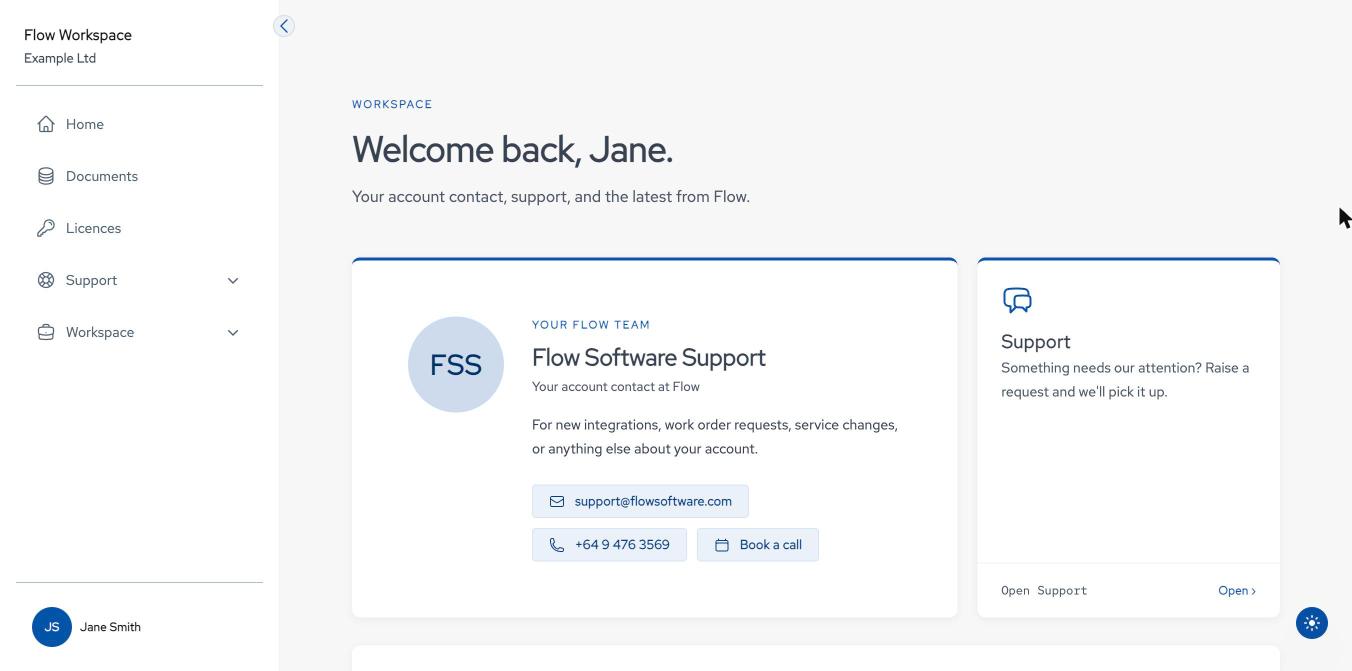
| Area | What it shows |
|---|---|
| Your Flow team | Your account contact at Flow, with email, phone and Book a call buttons. Use it for new integrations, work requests, service changes or anything else about your account. |
| Support | Open goes straight to a new support case. Shown if you can use Support. |
| How we work with you | A quick reference: new work or projects go to your account manager, something not working is a support request, and your support hours. |
| Latest from Flow | News and release notes. Read more opens the full updates page. |
Finding your way around
The sidebar on the left is the main menu. The name under Flow Workspace at the top is your organisation.
| Menu item | Goes to |
|---|---|
| Home | The home page above. |
| Documents | Documents: the trading documents exchanged with your partners. |
| Support | Support: Dashboard and Support Cases. |
| Workspace | Workspace: one entry per workspace you can use, such as Primary or Development. |
You only see the items your organisation has and your user is allowed to use, so your menu may be shorter than this.
- The round arrow button at the top of the sidebar collapses it to icons, and expands it again.
- Your name at the bottom of the sidebar opens the user menu.
- The round button at the bottom right switches between light and dark mode.