

Appearance
Support cases
Raise a support case with New case, then follow it and reply to Flow from the case page. Support Cases is under Support in the main menu.
Raising a case
- Select New case.
- Fill in the form. All fields are required.
- Select Create Case.
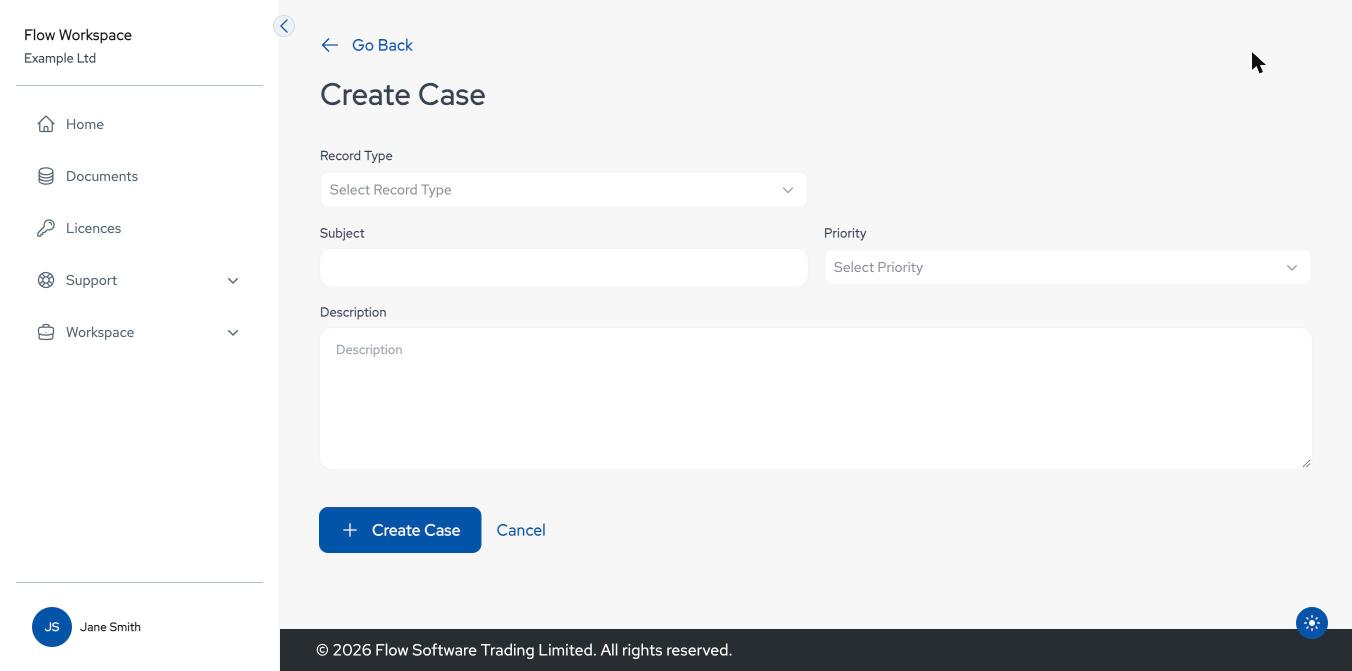
| Field | What to enter |
|---|---|
| Record Type | The kind of request, for example Support, Incident, Service Request, Change Request or Flow General Enquiry. |
| Subject | A short summary. |
| Priority | P1 - Critical, P2 - High, P3 - Medium or P4 - Low. |
| Description | What happened, what you expected, and any document numbers or partners involved. |
"Case created successfully!" confirms it and returns you to the list, where the new case shows as New. Cancel leaves without creating a case.
Finding your cases
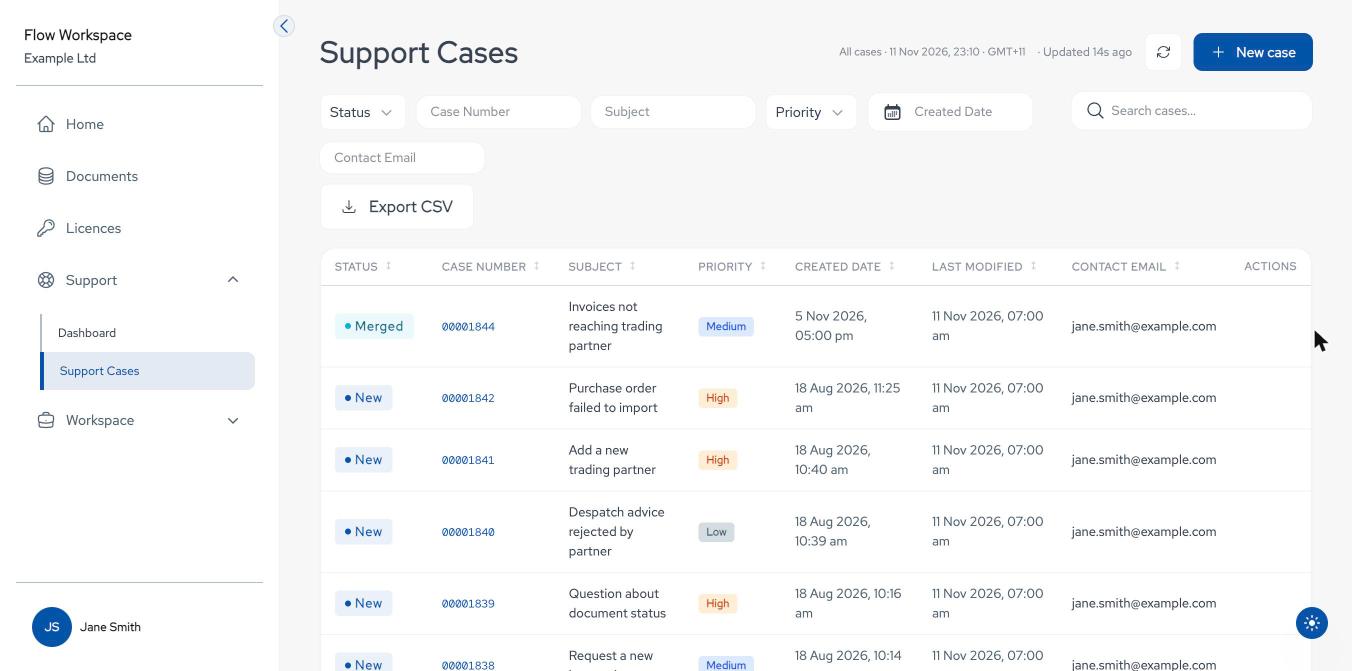
- The filters across the top narrow the list by status, case number, subject, priority, created date or contact email. Search cases searches across them.
- Select a column heading to sort. Paging and Rows per page are at the bottom.
- The refresh button reloads the list.
- Export CSV downloads the cases shown as a CSV file.
Case statuses include New, In Progress, Waiting for Customer, Waiting on 3rd Party, Response Received, On Hold, Escalated, Merged and Closed. When a case is Waiting for Customer, Flow needs a reply from you.
Following a case
Select a case number to open the case. The left panel shows its details; Read More expands a long subject or description. The right panel is the conversation with Flow.
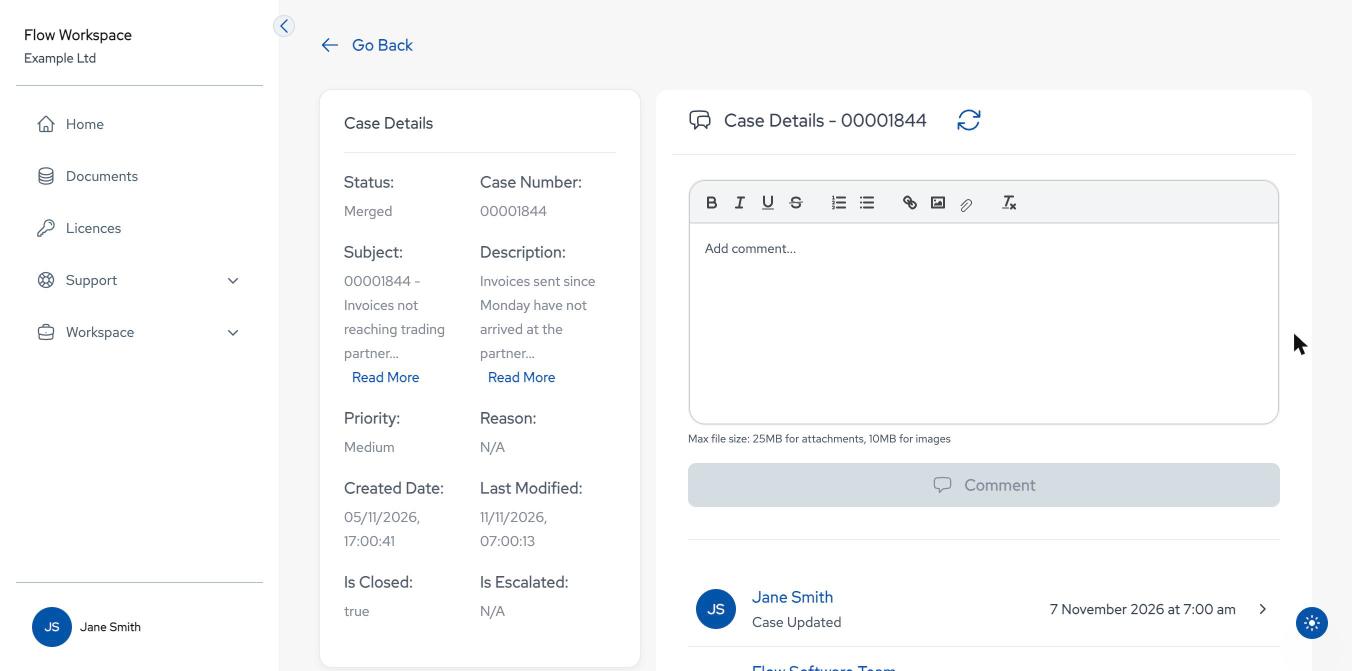
To reply, type in the comment box and select Comment. The toolbar formats text and adds lists, links, images and file attachments.
- Attachments: up to 25 MB each; PDF, Word, Excel, PowerPoint, text, CSV, ZIP or RAR.
- Images: up to 10 MB; you can also paste them in.
Larger files are not attached, so check your comment after posting. Emails about the case appear in the conversation with their recipients, and Reply answers a specific message.